Tab Units (Satuan) memungkinkan Anda untuk menentukan dan mengelola satuan ukur yang digunakan untuk barang inventaris Anda, memastikan pelacakan stok yang akurat.
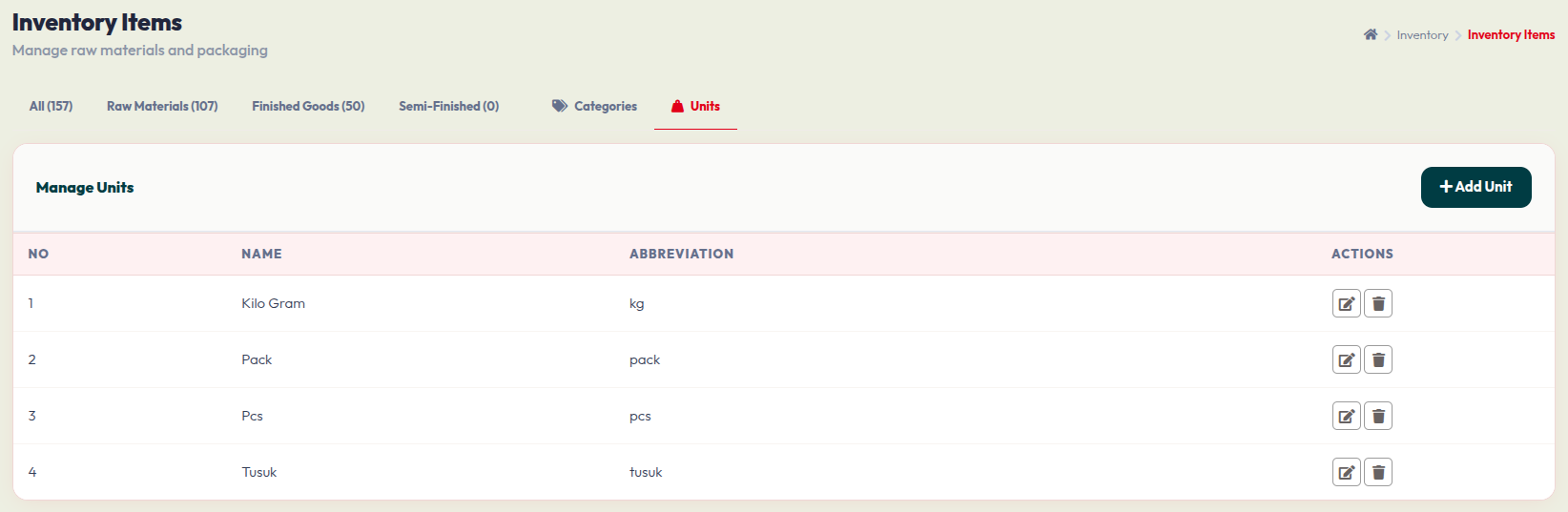
1. Melihat dan Mengelola Satuan
Dengan memilih tab Units di halaman Inventory Items, Anda dapat melihat semua ukuran yang terdaftar untuk produk Anda:
- Tabel Data: Daftar ini menampilkan Nama (Name) lengkap satuan (contoh: "Kilo Gram") dan Singkatannya (Abbreviation) (contoh: "kg").
- Aksi (Actions): Di sisi kanan setiap baris, gunakan Ikon Pensil untuk mengedit satuan yang sudah ada atau Ikon Tempat Sampah untuk menghapus satuan yang tidak lagi digunakan.
2. Menambah Satuan Baru
Untuk membuat satuan ukur baru bagi inventaris Anda, klik tombol + Add Unit yang terletak di kanan atas tabel.
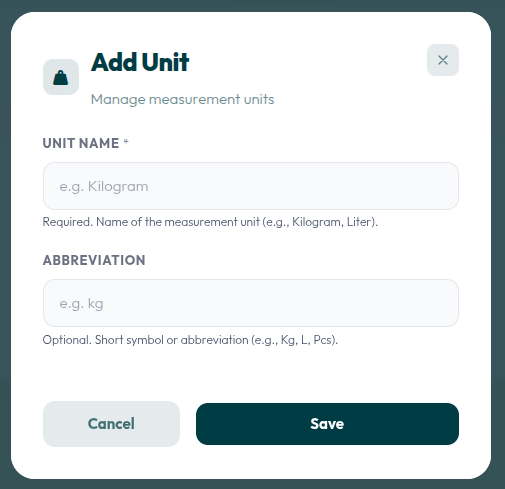
Ikuti langkah-langkah mudah berikut untuk menambahkan satuan:
- Nama Satuan (Unit Name): Masukkan nama lengkap satuan ukur (contoh: Kilogram, Liter, Pack). Kolom ini wajib diisi.
- Singkatan (Abbreviation): Masukkan simbol pendek atau singkatan untuk satuan tersebut (contoh: kg, L, pcs). Ini bersifat opsional namun sangat disarankan agar tampilan lebih rapi.
- Klik tombol Save (Simpan) untuk menambahkan satuan ke dalam sistem, atau klik Cancel (Batal) untuk membuang perubahan.