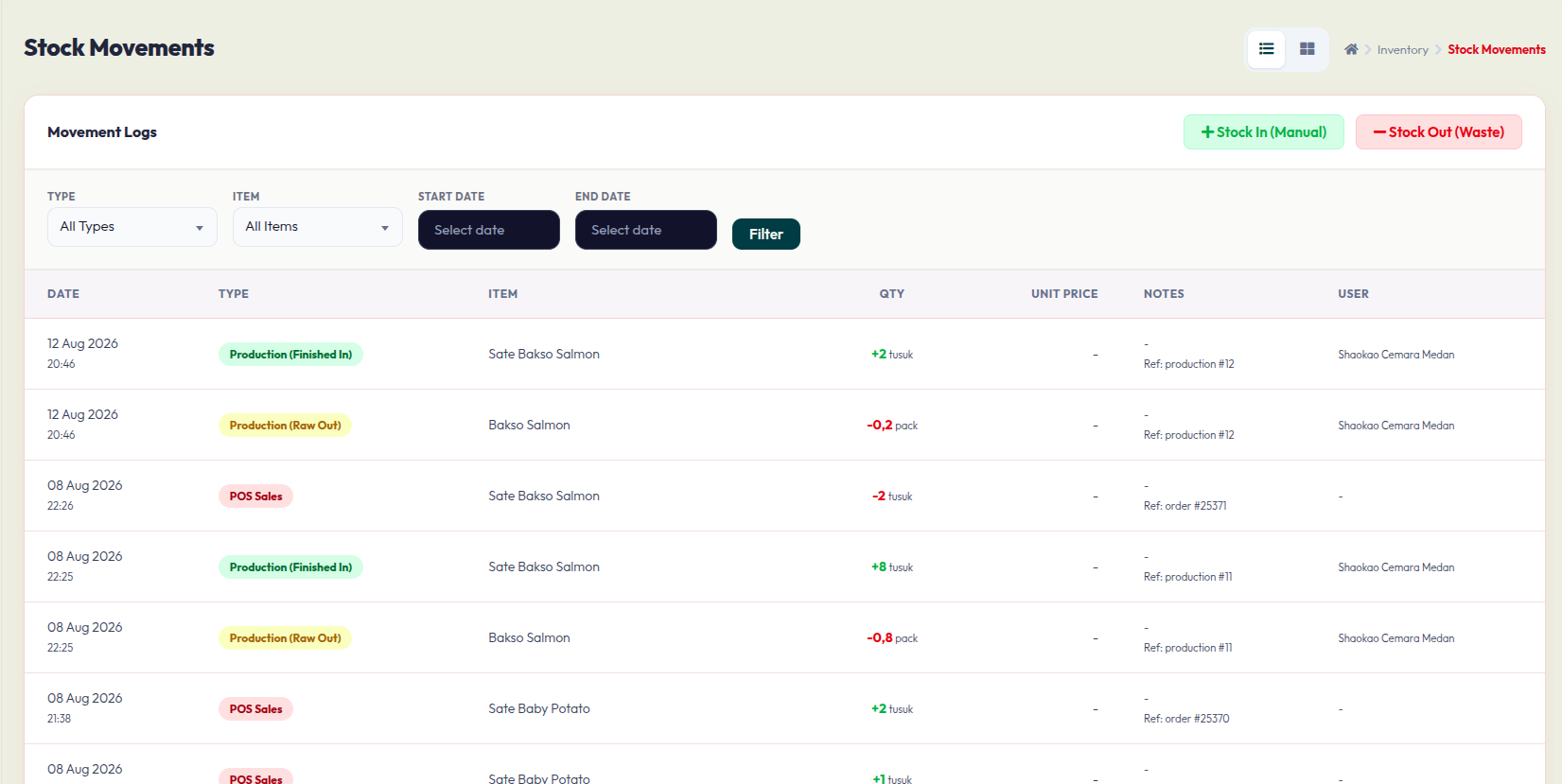
The Stock Movements page serves as your master audit trail, tracking every single change to your inventory levels—whether through sales, production, or manual adjustments.
1. Quick Actions
Located at the top right, these buttons allow you to quickly perform manual inventory changes:
- + Stock In (Manual): Use this to manually increase stock levels (e.g., adding supplies from a vendor).
- - Stock Out (Waste): Use this to record items lost to spoilage, damage, or breakage.
2. Filtering Your History
Use the filtering section to drill down into specific transactions:
- Type: Filter by movement type, such as POS Sales, Production, or Manual Adjustments.
- Item: Select a specific product to see only its movement history.
- Date Range: Choose a Start Date and End Date to view activity within a specific timeframe, then click Filter to apply.
3. Understanding the Movement Log
The table displays the detailed history of your stock:
- Date: The timestamp of the inventory change.
- Type: The source of the change (e.g., Production (Finished In), POS Sales).
- Item: The product affected.
- Qty: The amount changed. Green numbers indicate an increase, while red numbers indicate a decrease.
- Notes: Provides context, such as reference numbers for orders or production batches.
- User: Identifies which team member or system process recorded the movement.