The Internal Transfer Requests feature allows you to securely move stock between your different storage locations, such as transferring ingredients from the main warehouse to the kitchen.
1. Managing Transfer Requests
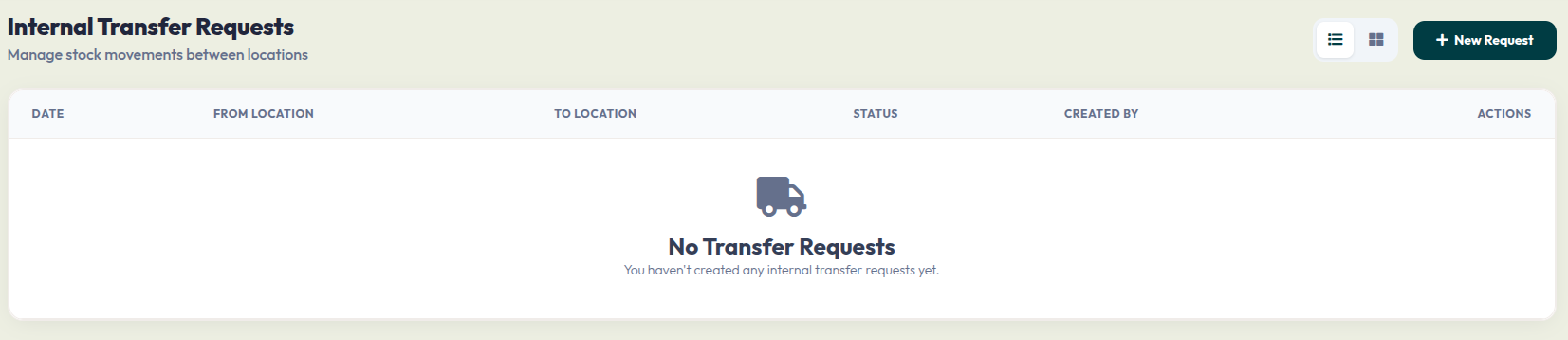
The main dashboard provides a complete history of your internal stock movements:
- Data Table: Once you have active transfers, this table will display the Date, From Location, To Location, Status, and who created the request.
- + New Request: Click this dark green button in the top right corner to start a new stock movement.
2. Creating a New Transfer
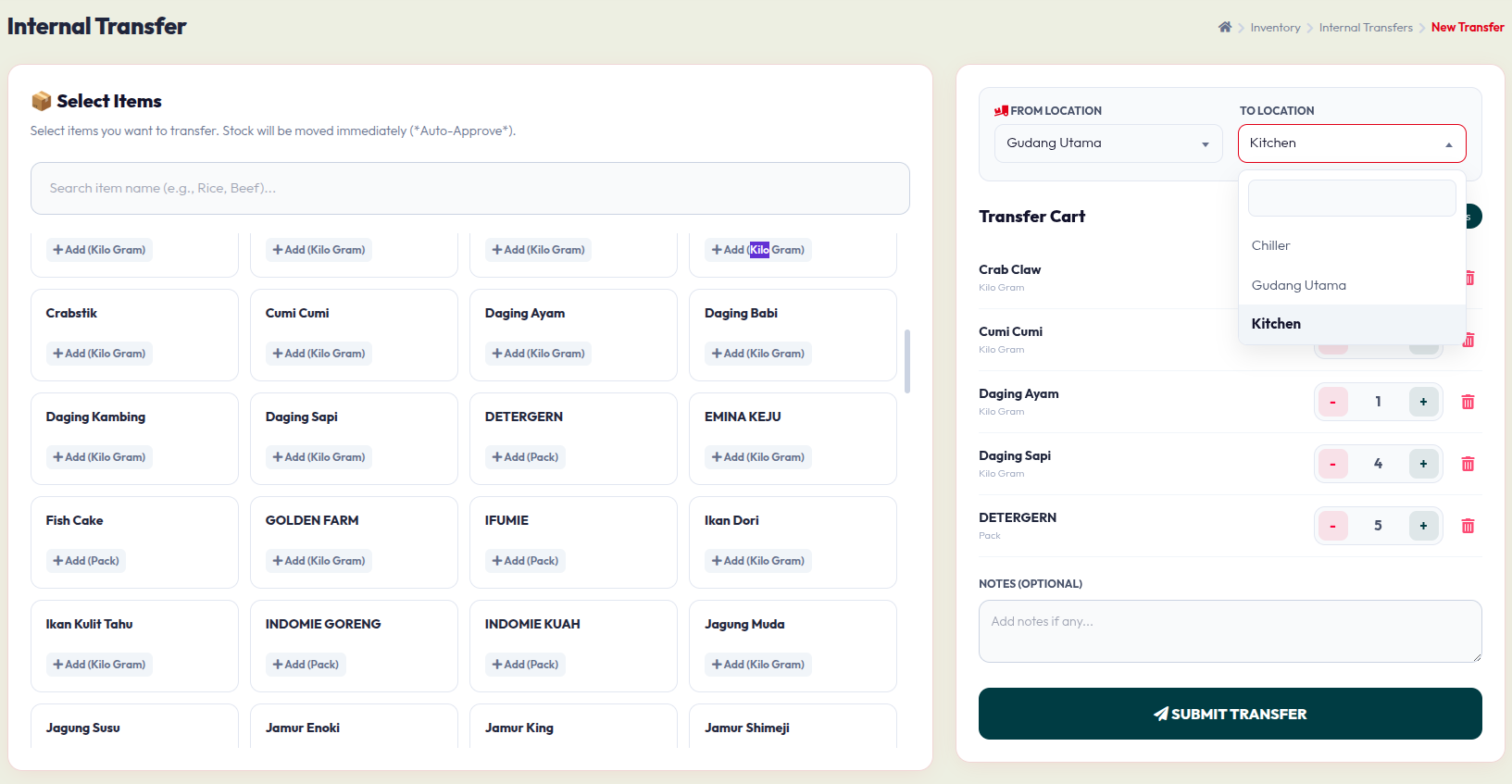
After clicking + New Request, you will use the transfer interface to select items and set their destinations. Follow these steps:
- Set the Locations (Right Panel):From Location: Select the storage area where the stock is currently held (e.g., "Gudang Utama").
- To Location: Select the destination where the stock will be moved (e.g., "Kitchen").
- Select Items (Left Panel):Use the search bar to find specific products quickly.
- Click the + Add button on any item card (e.g., "Daging Ayam", "Daging Sapi") to move it into your Transfer Cart.
- Adjust Quantities (Transfer Cart):In the right panel, review the items you added.
- Use the red - (minus) and green + (plus) buttons to adjust the exact quantity you wish to transfer.
- Click the red Trash Bin icon if you need to remove an item from the cart.
- Notes (Optional): Add any specific instructions or reasons for the transfer in the text box.
- Submit: Click the Submit Transfer button at the bottom to finalize and execute the stock movement.