Welcome to the Location Detail page. This page provides a focused view of a specific storage area, displaying its basic information, current inventory levels, and a complete log of stock movements.
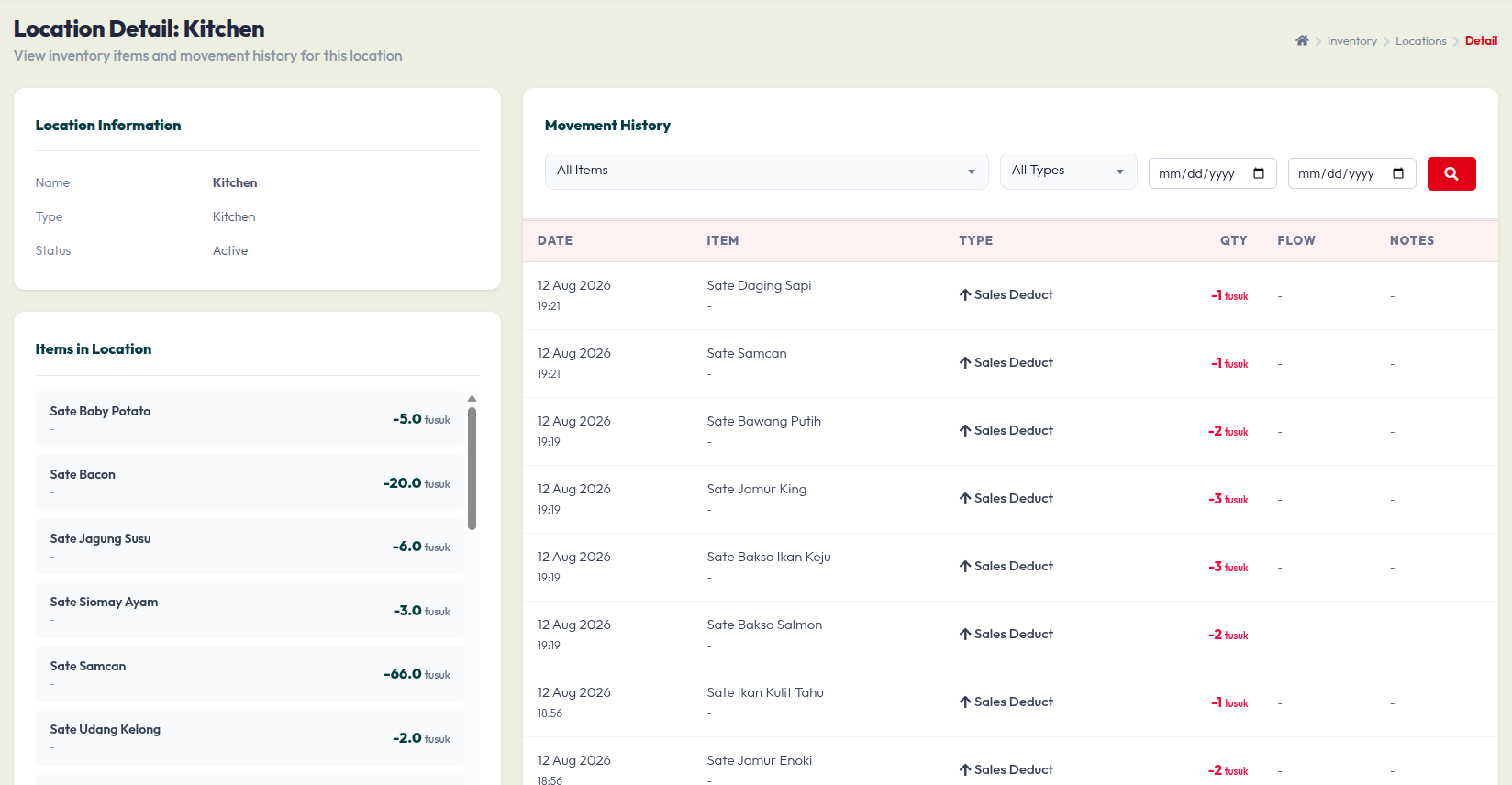
1. Location Information (Top Left)
This panel shows the primary details of the storage area you are currently viewing:
- Name: The designated name of the location (e.g., Kitchen).
- Type: The classification of this storage space.
- Status: Indicates whether the location is currently Active and operational.
2. Items in Location (Bottom Left)
This section displays a real-time list of all products stored in this specific area:
- Scroll through the list to quickly check what items are available.
- Each row shows the item name (e.g., "Sate Baby Potato") and its current stock quantity (e.g., "-5.0 tusuk").
3. Movement History (Right Section)
This area acts as a detailed ledger, tracking every single stock adjustment made within this specific location.
- Filters & Search:Use the first dropdown to filter the history by a specific Item.
- Use the second dropdown to filter by transaction Type (e.g., Sales, Manual Adjustment).
- Use the calendar date pickers to set a specific date range, then click the red search button to apply the filter.
- History Table:Date: The exact date and time the stock movement occurred.
- Item: The name of the product that was updated.
- Type: The reason for the change (e.g., Sales Deduct means stock decreased due to a sale).
- Qty: The amount of stock added or deducted. Red text indicates a deduction.
- Flow & Notes: Displays additional system data or manual remarks regarding the adjustment.