The Item Detail page gives you a comprehensive view of a single product's information, its stock distribution, and its complete transaction history.
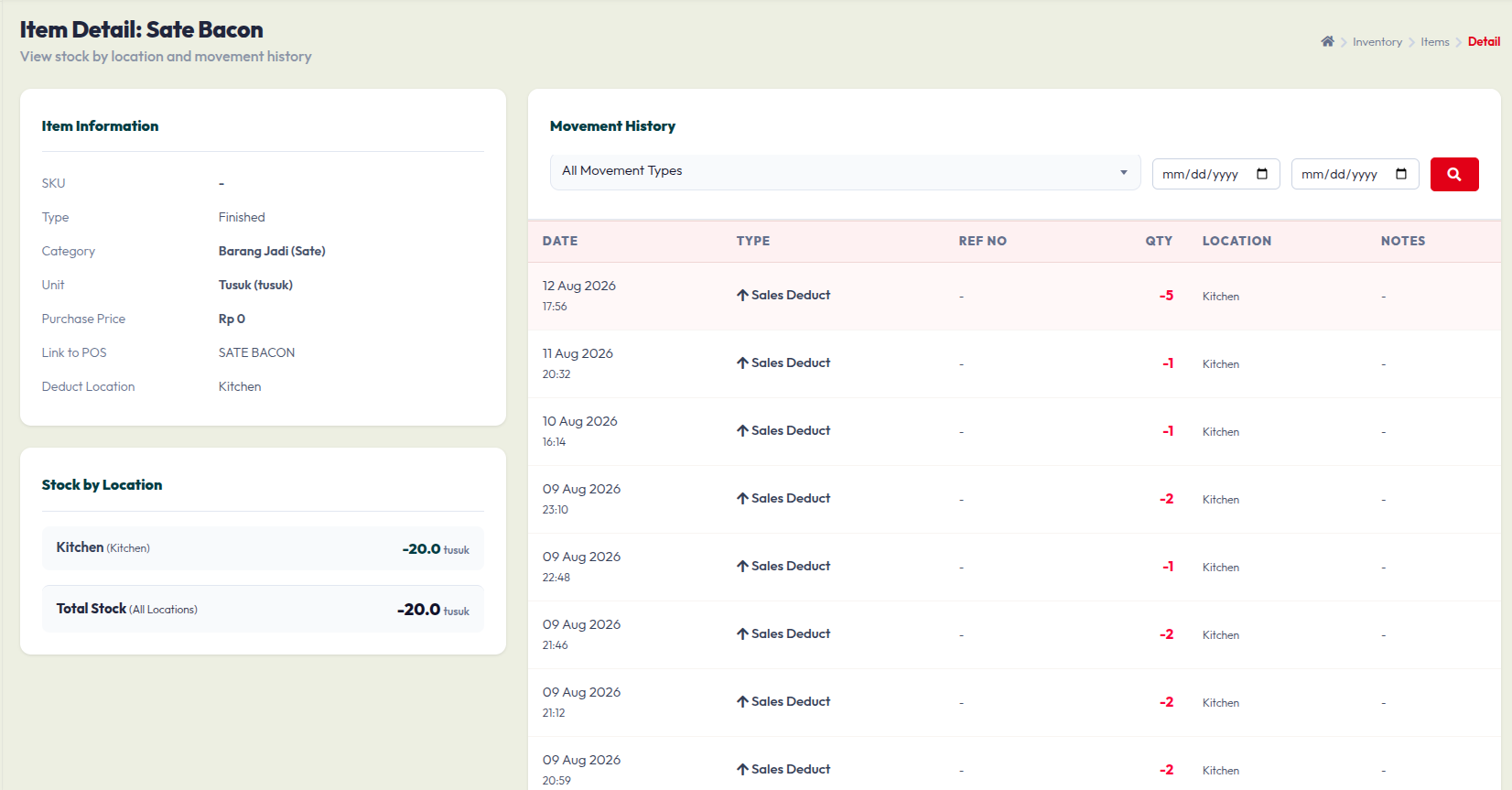
1. Item Information (Top Left)
This panel displays the core setup of your item:
- Basic Details: Shows the SKU, Type (e.g., Finished), Category, and measuring Unit.
- Purchase Price: The default cost of the item.
- Link to POS & Deduct Location: If integrated, this shows which Point of Sale (POS) menu item triggers a stock deduction when sold, and from which specific storage location (e.g., Kitchen).
2. Stock by Location (Bottom Left)
This section breaks down exactly where your item is stored:
- It lists the available stock quantity for each specific area (like the Kitchen or Main Warehouse).
- Total Stock: Displays the combined overall quantity across all your registered locations.
3. Movement History (Right Section)
This table tracks every time this specific item was added to or removed from your inventory.
- Filters: Use the dropdown to filter by Movement Type (like Sales Deduct or manual adjustments) or use the date picker to set a specific date range. Click the red button to search.
- Table Columns:Date: The exact time and date the movement happened.
- Type: The reason for the stock change.
- Ref No: The reference number for the transaction (if applicable).
- Qty: The amount added or deducted. A red number indicates a deduction from your stock.
- Location: The specific storage area affected by this movement.
- Notes: Any additional remarks or manual notes logged during the adjustment.