This page is the operational hub for managing dish details within each category. Here, you have full control over every menu item—from changing availability status in bulk, rearranging display positions, to organizing items into sections (sub-categories) for a more structured menu. This page is designed to help you maintain the accuracy of your menu on the customer ordering portal quickly and efficiently.
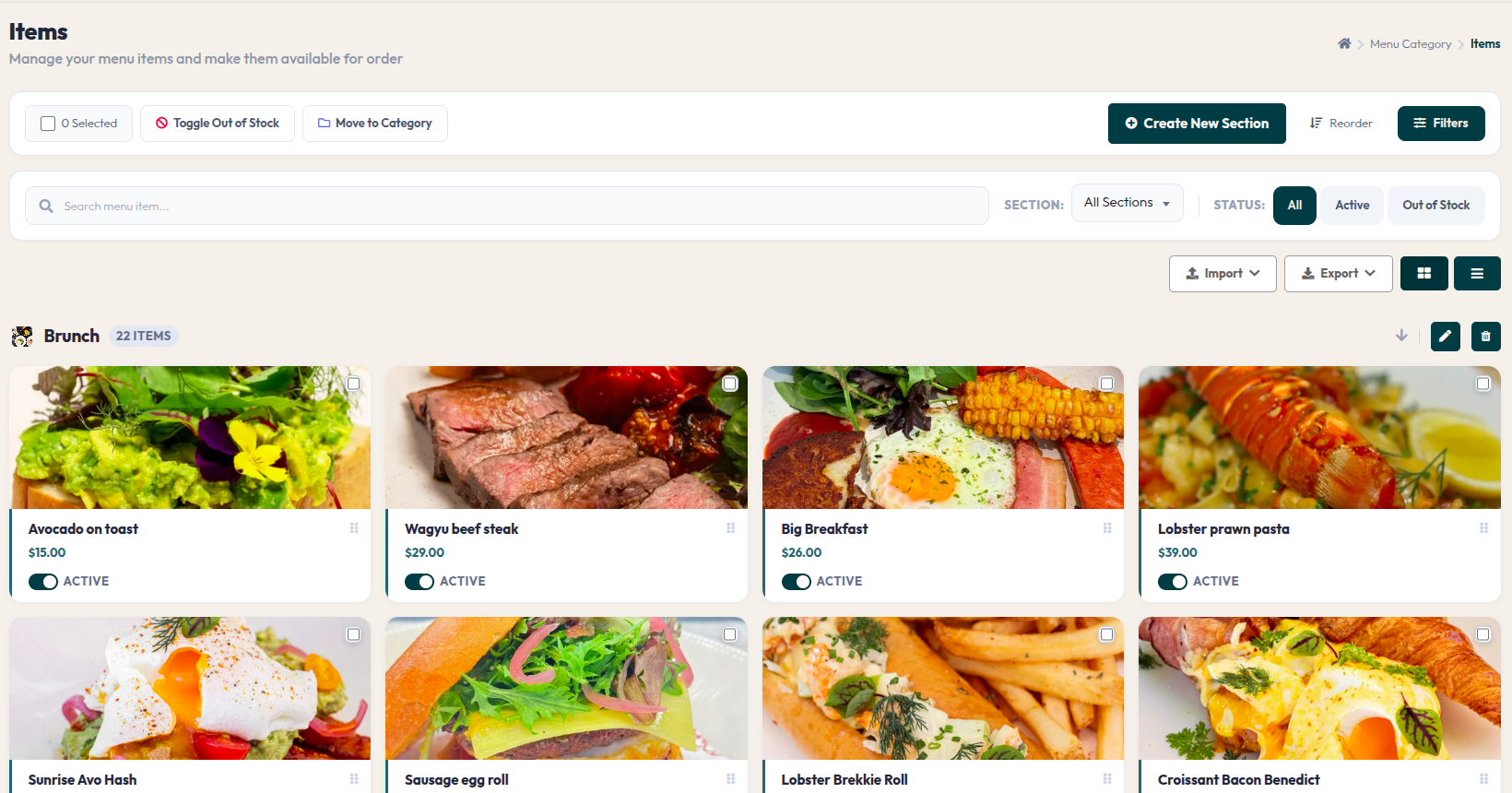
- Filters & Search: Use the Search bar, SECTION filter, and ACTIVE/OUT OF STOCK status buttons to locate specific menu items among your list.
- Create New Section: Use this button to divide items within a group into more specific sub-categories (e.g., Chicken Satay, Beef Satay within the Satay group).
- View List/Grid: Click the grid or list icons on the right to toggle between a visual card-based layout or a concise list layout.
- Bulk Actions: Select multiple items at once, then use Toggle Out of Stock to set availability in bulk, or Move to Category to reassign items to a different group.
- Reorder Position: Click the Reorder button to arrange the menu display order so your best-sellers appear at the very top of the customer portal.
- Import & Export: Use these buttons to upload or download menu data in file formats for faster, large-scale data updates.
With these management tools, you ensure that customers always see what's available and highlight your top dishes in the most strategic positions. Make adjustments regularly to support your restaurant's marketing strategy.