The Tipping Settings page is designed to give customers the flexibility to provide additional appreciation to your staff. Think of it as providing an appreciation option at the end of service; you make it easy for customers to tip with a single tap, without any awkwardness. This feature not only helps improve staff welfare but also fosters a positive service culture in your restaurant.
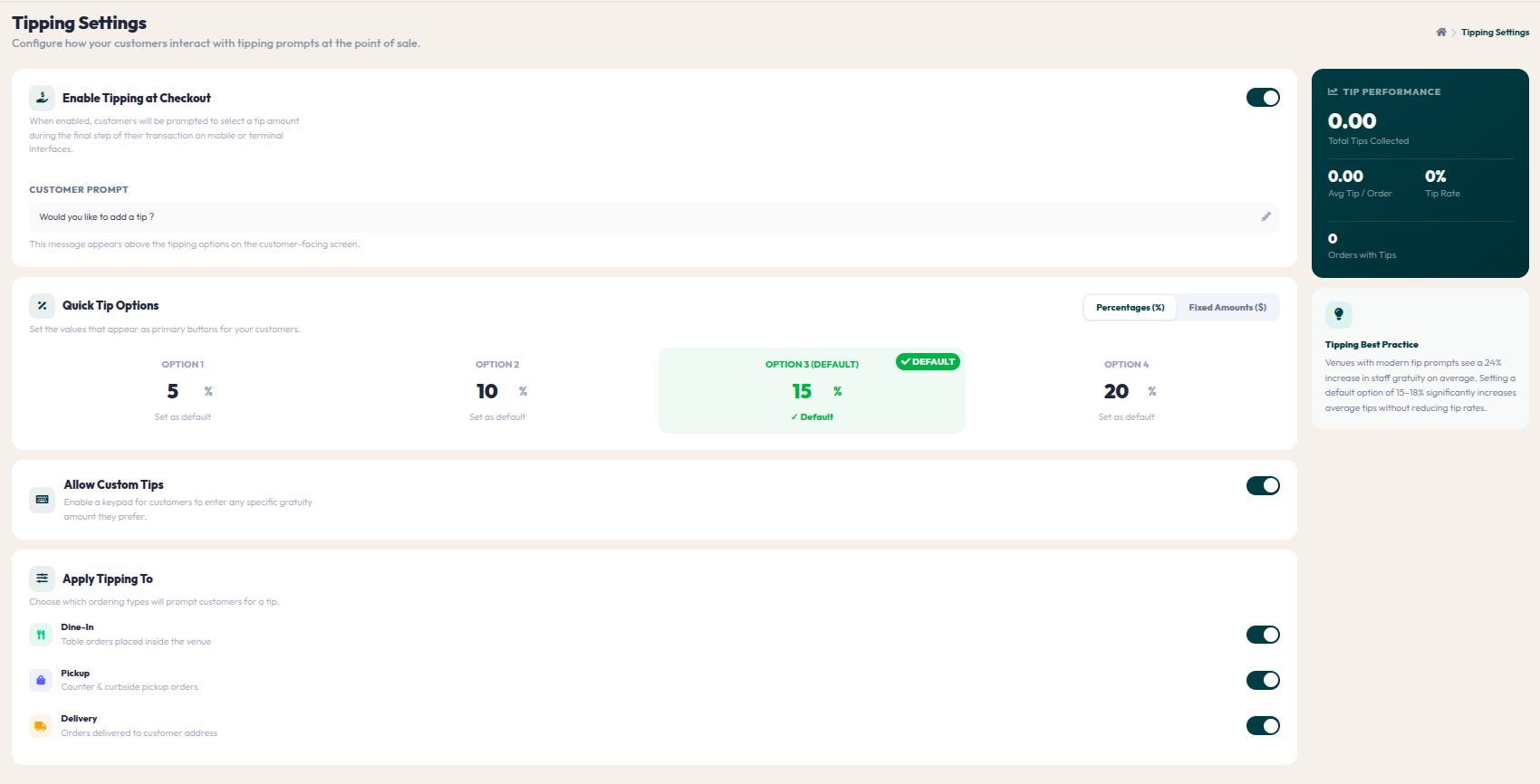
- Go to Orders > Tipping Settings.
- Enable Tipping at Checkout: Toggle this on to prompt customers to add a tip at the end of their transaction. You can also customize the message in the CUSTOMER PROMPT field.
- Quick Tip Options: Define the values that appear as quick-select buttons. You can choose either Percentages (%) or Fixed Amounts (Rp). You can set up to 4 options and designate one as the DEFAULT.
- Allow Custom Tips: Toggle this on to display a keypad, allowing customers to manually enter any specific tip amount they prefer.
- Apply Tipping To: Choose which service channels (Dine-In, Pickup, Delivery) will prompt customers for a tip.
- Click Save Tipping Rules to save your configuration.
The system also provides a TIP PERFORMANCE dashboard on the right to track total tips collected, average tips per order, and your current tip rate. Use this data to evaluate the effectiveness of your tipping strategy.