The Ordering Windows feature allows you to specify exactly when Pickup or Delivery services can accept orders from customers. The analogy is like physical store opening hours; you have full control to determine which days your restaurant serves online orders and during what time frames. With proper settings, you will never receive orders outside of operational hours, ensuring kitchen workflow remains balanced.
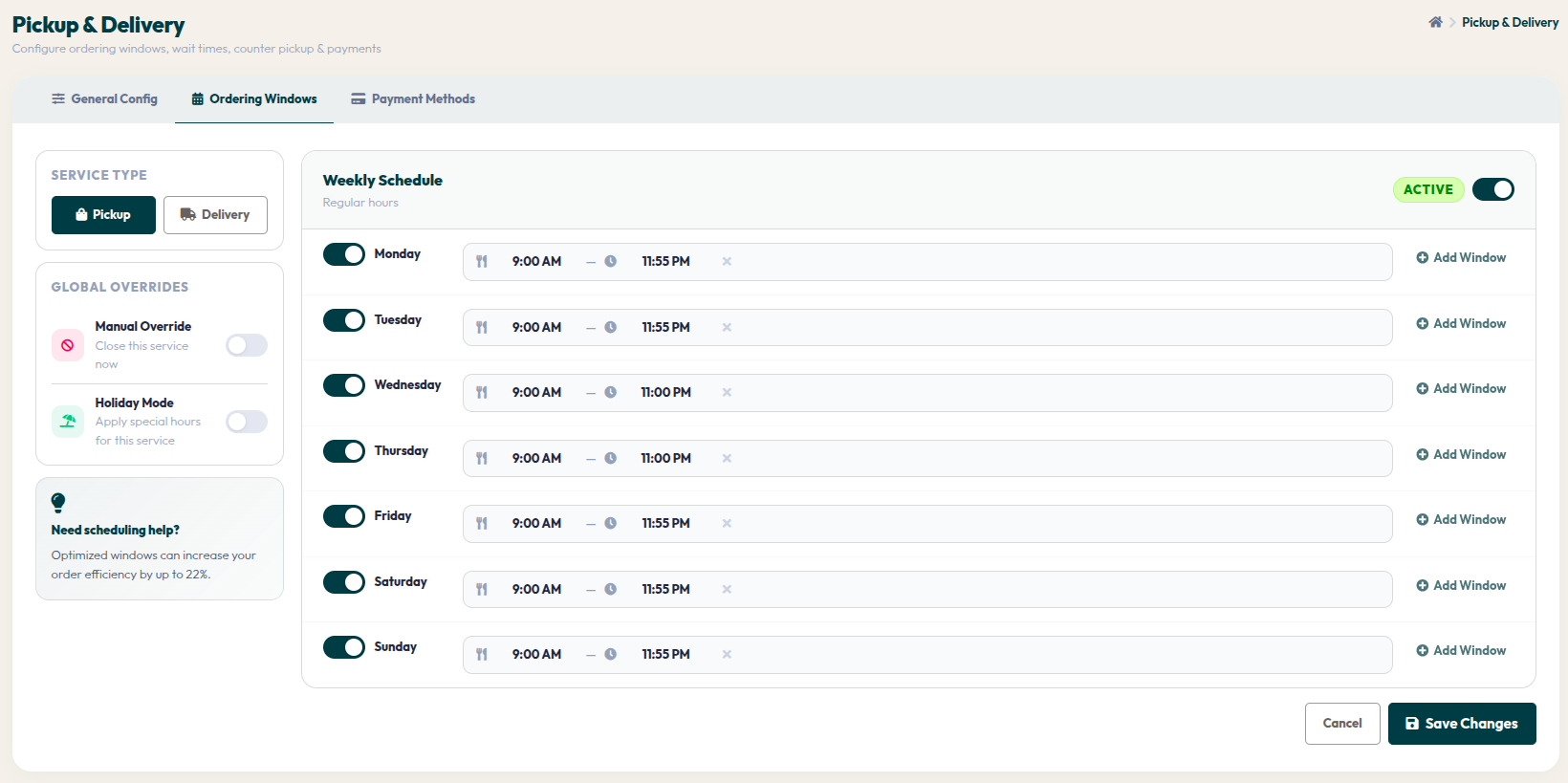
- Go to Orders > Pickup & Delivery, then select the Ordering Windows tab.
- Select the SERVICE TYPE (Pickup or Delivery) you wish to schedule.
- Use the ACTIVE toggle in the top right corner to instantly enable or disable the entire service schedule.
- Weekly Schedule: Set opening and closing times for every day of the week. You can disable specific days (e.g., closed on Mondays) by toggling off the switch for that day.
- Click + Add Window if you wish to add more than one time session in a single day (e.g., lunch session and dinner session).
- GLOBAL OVERRIDES: Use Manual Override to close services immediately (emergency) without changing routine schedules, or enable Holiday Mode to apply special hours during national holidays.
- Click Save Changes to apply your operational schedule.
Disciplined scheduling is the key to maintaining consistent service quality. By utilizing this feature, you provide clear expectations to customers regarding when they can enjoy delicious services from your restaurant.