The Counter QR feature serves as a dedicated digital gateway for customers who wish to place orders for direct pickup at the cashier (Counter Pickup). Think of it as providing an "express lane" or dedicated counter; by scanning this QR code, customers are immediately directed to the ordering menu specifically configured for pickup services, so they do not need to wait in long lines to order.
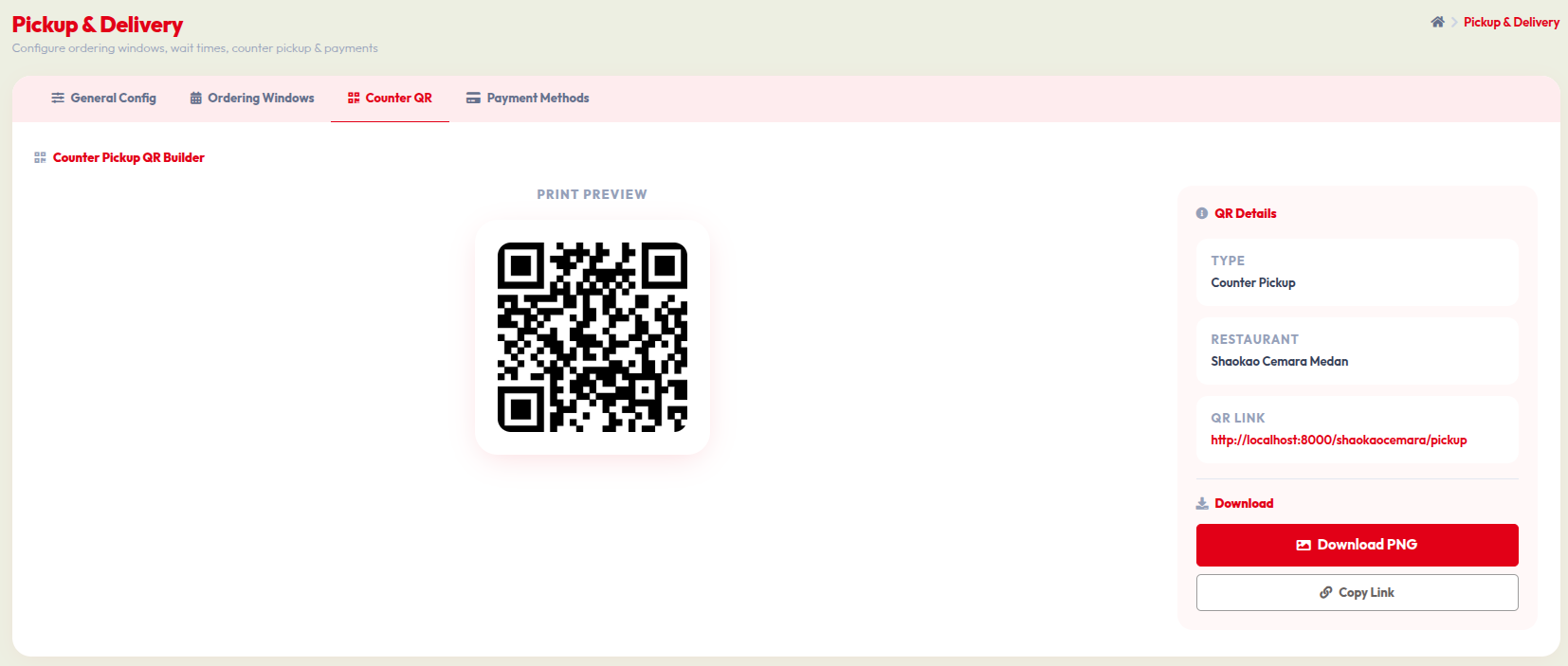
- Go to Orders > Pickup & Delivery, then select the Counter QR tab.
- In the PRINT PREVIEW section, you can see the QR code that will be scanned by customers.
- In the right-hand panel QR Details, verify the TYPE (Counter Pickup), RESTAURANT, and QR LINK information to ensure the code points to the correct portal.
- Use the Download PNG button to save the QR code image so you can print and display it at the cashier counter or pickup area.
- Use the Copy Link button if you wish to share the pickup ordering link via social media or instant messaging apps with your customers.
This QR code is a highly effective marketing asset to improve pickup service efficiency. By placing it in a strategic position, you make it easy for customers to transact quickly and significantly reduce the workload on your cashier staff.