The Purchase Orders (PO) page is your central hub for procurement. It allows you to create, track, and manage all your orders for inventory items from your suppliers.
1. Managing Existing Purchase Orders
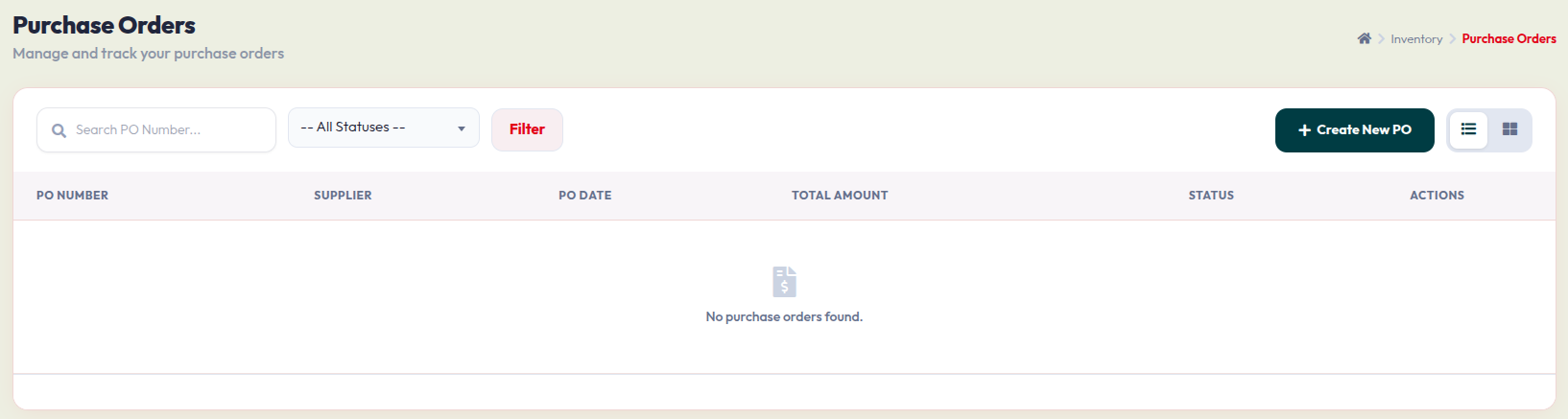
The main dashboard provides an overview of your procurement history:
- Search & Filter: Use the search bar to find a PO by its number, or use the Status dropdown to filter by pending, completed, or canceled orders. Click Filter to apply your selection.
- Table View: See a summary of each PO, including the PO Number, Supplier, Date, Total Amount, and current Status.
- Create New PO: Click the dark green + Create New PO button at the top right to start a new order.
2. Creating a Purchase Order
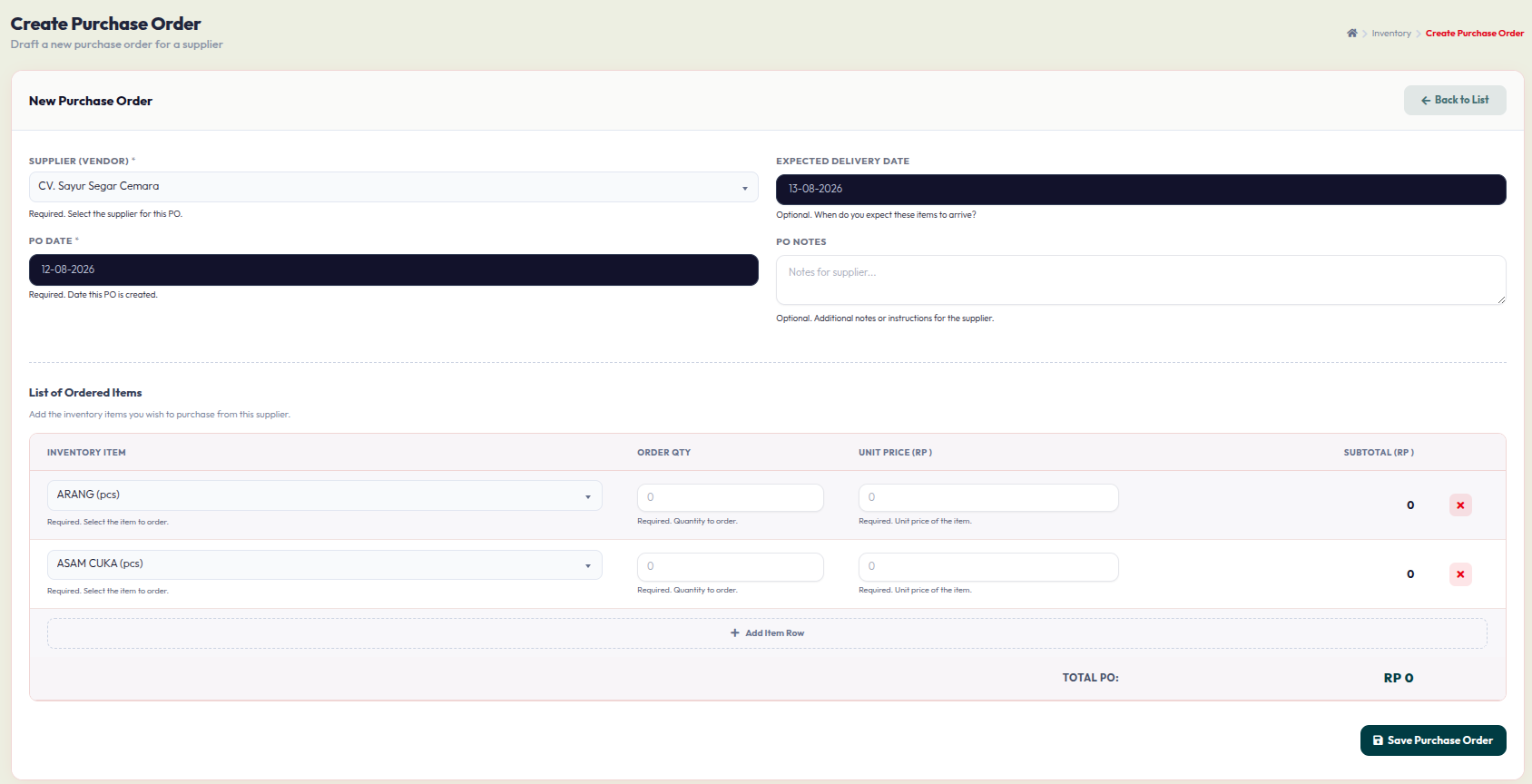
Once you click + Create New PO, fill out the form to draft your order:
- Header Information:Supplier (Vendor): Select the supplier you are ordering from.
- Dates: Set the PO Date (today's date) and the Expected Delivery Date for when you need the stock.
- PO Notes: Add any special instructions for the supplier (optional).
- List of Ordered Items:Inventory Item: Select the product you need from the dropdown menu.
- Order Qty: Enter the quantity required for each item.
- Unit Price: Enter the cost per unit. The system will automatically calculate the Subtotal.
- Add Item Row: Click the + Add Item Row button if you need to add more items to your order.
- Click the red X icon if you need to remove an item row.
- Finalize: Review the Total PO amount at the bottom, then click Save Purchase Order to confirm.